DevOps, Day - 65
Working with Terraform Resources 🚀

💻 Python | Docker | Jenkins | Networking | Git | Linux 💻
Passionate about leveraging technology to drive efficiency and deliver innovative solutions. Proficient in Python development, Docker containerization, Jenkins automation, computer networking, Git version control, and Linux administration. Skilled in collaborating with diverse teams to deliver high-quality software products. Proficient in AWS EC2 instance management and deployment.
Seeking new opportunities to apply my expertise and contribute to impactful projects. Let's connect and explore how we can work together!
Inter-personal Skills:
Communication, Adaptability, Emotional intelligence, Active listening, Collaboration.
Happy To Connect🔗😊
Feel free to reach me out😃@ --> vrishnishreevb531@gmail.com 📬
Understanding Terraform Resources
A resource in Terraform represents a component of your infrastructure, such as a physical server, a virtual machine, a DNS record, or an S3 bucket. Resources have attributes that define their properties and behaviours, such as the size and location of a virtual machine or the domain name of a DNS record.
When you define a resource in Terraform, you specify the type of resource, a unique name for the resource, and the attributes that define the resource. Terraform uses the resource block to define resources in your Terraform configuration.

Our main.tf file

Now initialize using terraform init command

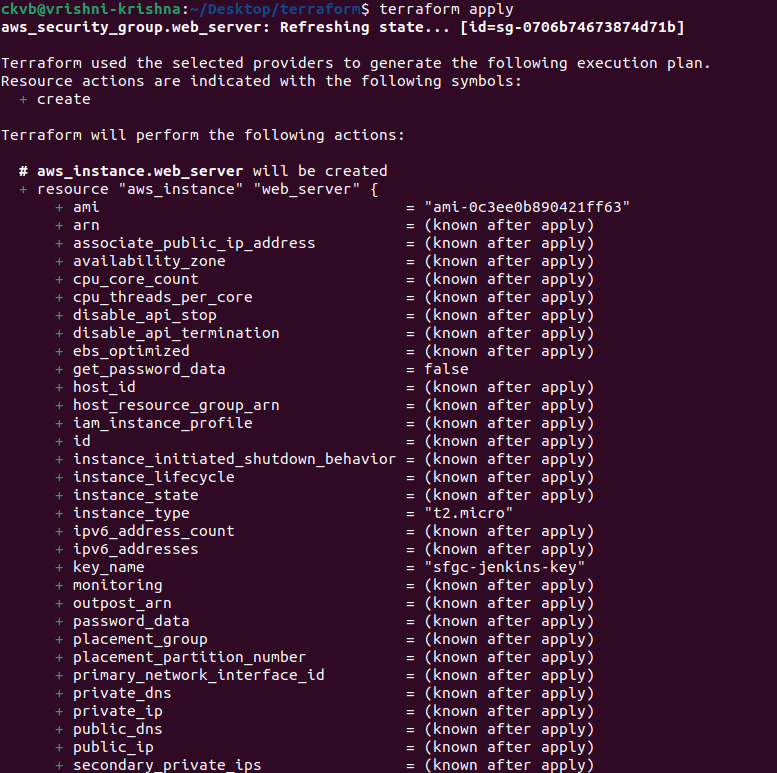
Now run terraform apply command


add the below code to your existing main.tf file
resource "aws_instance" "web_server" {
  ami           = "ami-0c3ee0b890421ff63" #give ur AMi
  instance_type = "t2.micro"
  key_name      = "sfgc-jenkins-key" #give ur keyname

  security_groups = [
    aws_security_group.web_server.name
  ]

  user_data = <<-EOF
    #!/bin/bash
    echo "<html><body><h1>Hare Krishna<br>Welcome to my website!</h1></body></html>" > index.html
    nohup python -m SimpleHTTPServer 80 &
    EOF
}
so our main.tf file looks something like this...

Now run terraform init and terraform apply commands.

terraform apply, command will launch the EC2 instance

Open your AWS console, and check the running instance created by your file : )

Thank you so much for reading
Follow me on LinkedIn to see interesting posts like this : )


